Browser Rules blocks dangerous downloads, even hidden inside ZIPs, controls which files users upload and where, warns about or blocks websites, reminds users to check a website before they sign in, and keeps malicious commands out of the clipboard. Every check runs in your browser, and files are never uploaded. It's built to protect your staff, not watch them, and records only what your rules act on.
Free for up to 50 usersFiles are checked in the browserDeploys with your device managementProtected from the moment it's installedListed in the Chrome Web Store
Real screenshot
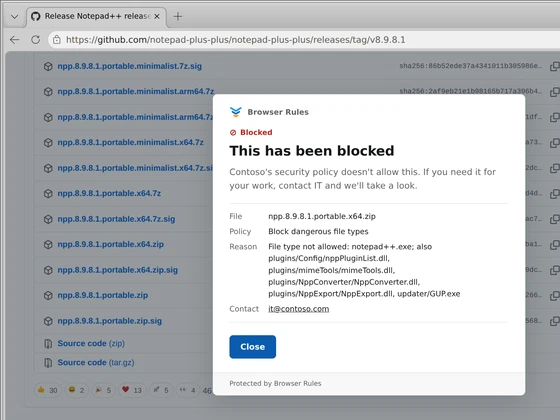
Screenshot of Browser Rules 0.9.0 in Microsoft Edge on github.com, October 2026.
Browser Rules is a browser extension. Privacy comes first.
Files are checked in the browser and never uploaded. Your organisation manages it from our admin console, which receives only what you choose to record.
What it never does
Never uploads your files. Downloads and uploads are checked in the browser.
Never sends anything until your organisation enrols it.
Never records what users type.
Never keeps a browsing history. It only records what your policies block, warn about or audit, and anything you choose to record.
Never sells or shares data. No ads, no analytics.
What it does
Checks downloads, uploads, copied text and website addresses, in the browser, and recognises sign-in pages.
Sends your organisation's admin console a record when a policy acts, and anything else you choose to record.
Lets you choose how much detail that record holds, down to just the website.
Downloads, uploads, websites, sign-in pages and the clipboard.
Browser firewall rules, checked from the top: the first to allow, warn or block decides, and an Audit only records.
Downloads
Programs, scripts and risky file types for Windows, macOS and Linux are stopped before they reach the disk, downloaded directly or inside a ZIP.
Looks inside ZIPs for programs and scripts
Blocks ZIPs inside ZIPs, and ZIPs that can't be checked
Your own file type lists, and exceptions for trusted websites
AllowAuditWarnBlock
Uploads
Decide which files users can upload to which websites, before the website can read them.
Block uploads to personal file sharing, webmail or AI assistants
Warn first, and record what users chose
Record uploads by name and size, never their content
AllowAuditWarnBlock
Websites
Block websites outright, or show a warning users must acknowledge before they carry on.
Blocked before the page loads
Ready-made lists of AI assistants, file sharing, webmail and social media, kept up to date
Record visits for audit, without interrupting anyone
AllowAuditWarnBlock
Clipboard
Keeps malicious commands out of the clipboard, so there is nothing dangerous to paste and run.
Catches pages that write to the clipboard on their own
A list of the commands attackers use, kept up to date
Safe text goes on the clipboard instead
AllowAuditWarnBlock
Sign-in pages
A reminder on sign-in pages you haven't trusted, with the website's address, so users check where they're about to type a password. And a view of where your staff sign in.
Recognised by the page's structure, in any language, never by what's typed
Trust your own sign-in pages, so the reminder only shows elsewhere
See where your staff sign in, and spot the apps you didn't know about
AllowAuditWarn
Privacy
You choose what the admin console records.
Browser Rules checks downloads, uploads and copied text inside the browser. Your admin console records only what your policies block, warn about or audit, in the detail you choose.
Events you choose to record
Blocks, warnings and audits are recorded. An Audit policy can record visits to the websites you choose, so record only what you need. Recording every download or upload stays off unless you turn it on.
You choose the detail
Pick a privacy level, from websites only to full detail. Or choose each setting yourself.
The same protection at every privacy level
Every policy applies at every level. Only what the admin console receives changes.
Files stay on the computer
Files are checked in the browser. They're never sent to Browser Rules or your admin console.
What the admin console receives
A blocked download, at Balanced, the default.
Try itPick a privacy level that suits you.
The user and the page, without queries, matched text or reasons. The default.
No organisation can see another's data. Our support team can open your admin console only when you allow it, for a set time.
Messages
Users see your message when a policy applies.
Every message shows your organisation's name, your wording and who to contact. It shows the rule when it applies, not months later in a course.
A program hidden in a ZIPA ZIP on a GitHub release holds a program. It's blocked before anything is saved, by the default policy.Screenshot of Browser Rules 0.9.0 in Microsoft Edge on github.com, October 2026.
Security awareness training
Your rule, where it applies
Warn on an AI assistant: "Don't paste customer data. Read our AI policy." Users learn the rule where it applies, with a link to find out more.
Read before carrying on
Ask users to acknowledge a warning before they continue. Where the rule is firm, block instead and say why.
For the users who need it
Warn new starters or one department about personal webmail, file sharing or Office files with macros, and leave everyone else alone.
See who needs extra training
The audit log shows who was warned, who went back and who carried on, so you can follow up where it counts.
Choose how you manage your computers and download a ready-made file with your enrolment key in it. Browsers connect to your admin console by themselves.
IntuneGroup PolicyGoogle AdminJamf
Start from the built-in defaults, or a ready-made policy from the Rule Library, such as blocking AI assistants
Policies for everyone, groups or named users: the first to allow, warn or block wins, so exceptions are easy
Every block, warning and override in one audit log, with the file's fingerprint and a one-click lookup
Change policies in one place; browsers pick them up within minutes
Let a user pause protection on a website, for a set time
Already installed? Enrol it at any time: nothing needs reinstalling.
The admin console
One place to manage policies and review activity.
Users and groups
Target policies at groups or named users, recognised from the browser's signed-in account.
Your messages
Templates with your wording, colours and a contact, shown as a banner, overlay or full page.
Audit log
Who, what and where, with the file's SHA-256 and the link it came from. Kept for 30 days on Free, a year on paid plans.
Where users sign in
Every website your staff open a sign-in page on, most-used first, so you can spot the apps you didn't know about. Trust the genuine ones in a click.
Privacy settings
Choose what browsers send, from websites only to full detail, with an example of what you'll receive. Record every download and upload too, if you need a full history.
Pausing protection on a website
Let a user pause protection on one website for a set time, with a reason that's recorded.
Roles and two-factor
Owners, admins and read-only members. Two-factor or passkeys for everyone.
Rule Library
Ready-made policies to start from, such as blocking AI assistants, warning before files are uploaded to them, or warning before Office files with macros.
Lists kept up to date
Browser Rules keeps the dangerous file types, malicious commands and website lists up to date. Browsers get each change within minutes.
Review, then publish
Changes reach browsers only once they're published, with anything that weakens protection marked. Every version is kept, so you can see what changed and when.
OverviewYour protection, the last week's activity and your browsers, on one page.Screenshot of the admin console at console.browser-rules.com, October 2026.
Support
Support from the people who build it.
Your questions go straight to the team behind Browser Rules.
Quick answers
By chat or email, so a question doesn't hold up your rollout.
Answered by the developers
The people who build Browser Rules have spent years in IT roles themselves, so they know what you're dealing with.
Does it protect users before we set anything up?Yes
Once installed, its default policies block programs and risky file types (even inside ZIPs), ZIPs within ZIPs, malicious commands on the clipboard and Microsoft 365 device code sign-in. To set your own policies, enrol it in the admin console, which is free for up to 50 users.
Does it replace antivirus?No
It's an extra layer in the place many attacks begin: it stops risky downloads and websites, and keeps malicious commands out of the clipboard. Keep your antivirus, email filtering and updates.
Can it help with security awareness training?Yes
A warning shows your own message, with links to your policies, at the moment a user visits a website, downloads or uploads a file, or copies text that your policy covers. You can ask users to acknowledge it before they carry on, and the audit log shows who was warned and what they did next.
Can it show which apps our staff use?The ones they sign in to
Turn on Record every sign-in page and the admin console lists every website your staff open a sign-in page on, with how many people and on how many days, so you can spot apps you didn't know about and trust the genuine ones. A sign-in page seen isn't proof of an account, so it's ranked by how likely the app is in use. Nothing typed is ever recorded. Sign-ins
What does "low-hanging fruit" mean?One-click attacks
The easiest ways into a business: attacks that need nothing clever, just one click. A ZIP of "invoices" that hides a program. A fake "verify you are human" page that copies a command. A sign-in code typed in for a stranger. Attackers try these first because they work so often. Browser Rules stops them with a few simple rules, so attackers have to work harder, and most move on.
Privacy
What it sees, and where data is kept.
What can the extension see?Very little
In principle, any browser extension can see everything, which is why trusting one is a fair thing to question. Browser Rules is built to see as little as possible. Its checks run on the computer, it reads only what a policy needs to make a decision, it never reads what people type, and files are never uploaded. The admin console records only what your policies act on, in the detail you choose. Each permission it asks for, explained.
Are our files uploaded anywhere?No
Downloads and ZIPs are checked inside the browser on each computer. Uploads are decided by the file's name and the website, and a recorded upload keeps only its name and size. Only audit events (what was blocked, warned or recorded) go to the console, and the Privacy settings decide how much detail they carry.
Where is our data kept?UK, London
The admin console and its database run on Microsoft Azure in London. No organisation can see another's data, and our support team can open your admin console only when you allow it, for a set time. How we protect your data.
Rolling it out
Browsers, users and day-to-day running.
Which browsers does it work with?Chrome and Edge
Google Chrome and Microsoft Edge on Windows, macOS and Linux. Both install it from the Chrome Web Store, so one extension covers both.
How does it know who is using the browser?Their sign-in
From the account signed in to Chrome or Edge, so no per-person setup is needed. You can also set the user by policy.
Can users turn it off?Not if you install it by policy
Not when it's installed by policy. If you allow it, users can pause protection on one website for a short time, with a reason that goes in the audit log.
What about Incognito and InPrivate windows?Covered
They're protected once the extension is allowed in them. The setup guide shows how, or you can turn private windows off by policy.
What happens when users are offline?Still protected
Browsers keep enforcing the last policies they received, and send their audit events when they're back online.
Working with us
Who we are, the price and getting help.
Who makes Browser Rules?ProCo IT
ProCo-STS Limited, trading as ProCo IT, a software company in Somerset, England (company number 05054551), and the makers of Kiosk Browser. More about us.
Are you a cyber security company?No
We apply a few simple rules in the browser to keep more organisations safe from common attacks: the low-hanging fruit attackers rely on. No security team needed.
Why is it free for up to 50 users?
Small organisations face the same attacks as large ones, and usually have the least to spend on protection. The Free plan has every protection; larger organisations will pay for more users, a year of audit history and priority support.
 Chrome
 Edge