
Your staff are almost certainly using AI tools at work. In Microsoft’s 2024 Work Trend Index, 75% of knowledge workers said they use AI at work, and 78% of them bring their own tools rather than waiting for one to be provided (Microsoft).
Banning AI outright rarely works. People find a way round it, and you lose sight of what they use. The approach that holds up is to approve the right tools, make them the easy choice, and control the rest.
Why unapproved AI tools are a risk
- Your data goes where you have no agreement. Free and personal plans often keep conversations, and some use them to improve their models unless the user opts out. Business plans usually don’t, and say so in their terms.
- You can’t manage the accounts. A personal account can’t be closed when someone leaves, and you can’t see what was shared through it.
- Fake AI tools are a growing route for malware. Attackers set up lookalike AI websites and fake desktop apps. Huntress’s Tragic Quadrant report describes a fake Claude Desktop download that reached 29 organisations in two days.
- Compliance. Personal data entered into an unapproved tool can break your data protection obligations, such as the UK GDPR.
Step 1: choose what to approve
Pick one or two tools that fit how your organisation works, on a business plan. Check that the plan:
- doesn’t use your data to train its models,
- lets you control how long conversations are kept,
- gives you admin controls and single sign-on, so accounts are created and closed with everything else,
- keeps data where you need it to be, if that matters to you.
For many organisations, the AI included in their productivity suite is the obvious first choice. Microsoft 365 Copilot Chat, for example, is available at no extra cost to users with a Microsoft 365 work licence.
Then write a short AI policy: which tools are approved, what can and can’t go into them (customer data, personal data, passwords), and who to ask about anything else.
Step 2: make the approved tool the easy choice
- Give everyone access, signed in with their work account.
- Show people what it’s for, with examples from their own jobs.
- Name a contact for questions and requests for other tools, so approval is a conversation, not a dead end.
Step 3: control the rest
There are several ways to do this, and they work best together.
| Approach | Good for | Limits |
|---|---|---|
| Protective DNS or a web filter with an AI category | Every app and browser on the network, or on devices with its agent | Usually blocks a whole website, and users see an error rather than an explanation |
| A secure web gateway or CASB | Fine-grained control, including which accounts can sign in | Cost and complexity; traffic usually passes through the vendor |
| Browser policies | Allowing or blocking by website and by group, with your own message, wherever the device is | Only covers the managed browser, not desktop apps |
| The approved tool’s own settings | Controls over data, sharing and retention | Only for tools you’ve approved |
Approve the account, not just the website
Allowing or blocking by website has a catch: many AI tools serve personal and business accounts from the same address. Allowing chatgpt.com for your ChatGPT Enterprise workspace also allows personal ChatGPT accounts.
Some vendors solve this. ChatGPT Enterprise can limit sign-ins to your organisation’s workspace when your network adds a header to its traffic, which most web gateways can do (OpenAI). Microsoft’s version for its own services is called tenant restrictions.
Copilot needs particular care. Microsoft 365 Copilot Chat now lives at m365.cloud.microsoft, alongside the rest of Microsoft 365, so a website rule can’t separate it from Office on the web. Use Microsoft’s own admin settings to control it. The consumer Copilot, at copilot.microsoft.com, is a separate website.
Warn before you block
Starting with a warning is often better than going straight to a block:
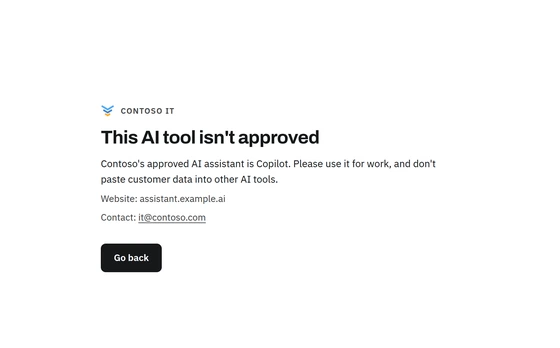
- It teaches. A message such as “Our approved AI assistant is Copilot. Please don’t paste customer data into other AI tools” explains the policy at the moment it matters.
- It shows you demand. Recording visits tells you which tools people reach for. If many people use one tool, it may be worth approving.
- It avoids surprises. Block once people know the approved tool and the reason.
Where Browser Rules fits
Browser Rules handles the browser part of this, in Chrome and Edge:
- A ready-made AI assistants list. It covers 28 AI chat websites, including ChatGPT, Claude, Gemini, Copilot, Perplexity and DeepSeek, and Browser Rules keeps it up to date.
- Allow one, block or warn on the rest. Put an Allow policy for your approved tool above a Block or Warn policy for the list. Policies are checked from the top and the first match wins, and each can apply to everyone or to chosen users and groups.
- Your message, with a link to your AI policy. A blocked website shows it before the website loads.
- Audit first, if you like. The Audit action records visits without interrupting anyone, so you can see which AI tools are in use before you decide.
See Website policies and Website lists for how to set it up.
What website controls can’t do
- See what’s typed into the approved tool. Controlling which websites people use doesn’t check what they paste into them. That needs data loss prevention, or the approved tool’s own controls.
- Cover desktop apps. ChatGPT, Claude and Copilot all have desktop apps, which don’t go through the browser.
- Catch AI built into other tools, such as writing assistants in document editors or AI features in apps you already use.
- Tell personal and work accounts apart on the same website, as described above.
A short checklist
- Choose your approved AI tools, on business plans.
- Write a one-page AI policy: the approved tools, what can go into them, and who to ask.
- Give everyone access with their work account.
- Record or warn on other AI tools first, then block.
- Limit sign-ins to your organisation’s accounts where the vendor supports it.
- Review what people ask for, and approve more tools when it makes sense.