
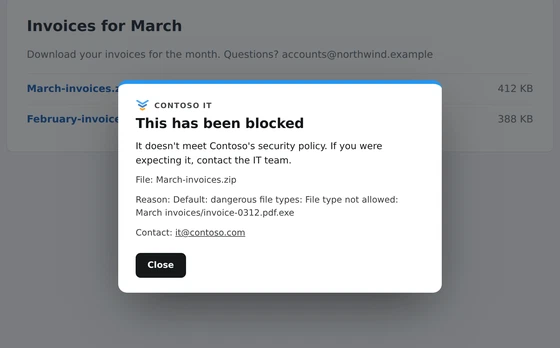
Most attacks still need something to run on the computer. Often that’s a file the user downloads: an “agreement” that’s really a remote access tool, an “invoice” that’s really a program, or an AI app from the wrong website.
What attackers are sending
Huntress’s Tragic Quadrant report shows how common this is:
- Remote access tools in disguise. RMM abuse was involved in 45% of the endpoint incidents Huntress investigated in the first quarter of 2026, after rising 277% in 2025. Attackers use fake document shares and service agreements to get users to download the tool. In one case, “Network Solutions Agreement.msi” was really an RMM installer, which then added three more remote access tools to the same computer.
- Attachments that aren’t what they seem. A phishing email posing as a copyright notice carried a ZIP. Inside, a real PDF reader sat next to a malicious file that quietly started a remote access trojan.
- Fake AI apps. A malicious page hosted on Claude’s own website sent people looking for Claude Desktop to a download that installed SectopRAT, a remote access trojan. It reached 29 organisations in two days.
What they have in common
- The file runs code: a program, an installer, a script, a shortcut, or a library that a program loads.
- It looks like something ordinary: an agreement, an invoice, a report or a familiar app. A name like invoice-0312.pdf.exe hides its real type when Windows hides file extensions.
- It often arrives inside a ZIP, which many filters pass without looking inside, and sometimes password-protected so nothing can look inside.
How Browser Rules blocks them
The default policy, “Default: dangerous file types”, is on from the moment Browser Rules is installed.
- 117 dangerous file types are blocked, for Windows, macOS and Linux. They include programs and installers (.exe, .msi, .dmg, .pkg, .deb), scripts (.ps1, .bat, .cmd, .js, .vbs, .hta), shortcuts (.lnk), libraries (.dll), Java (.jar, .jnlp), disk images (.iso, .img, .vhd, .vhdx), Office files with macros (.docm, .xlsm) and Android apps (.apk).
- The real file type counts. A file is judged by the last part of its name, so invoice-0312.pdf.exe is a program, whatever the rest of the name says.
- ZIPs are opened and checked. Every file inside a .zip is checked before anything is saved. One dangerous file blocks the whole ZIP, and the message names it.
- ZIPs that hide their contents are blocked. A ZIP inside a ZIP, a password-protected ZIP, or a damaged or oversized one can’t be checked, so the default policy blocks it.
- Other archives are blocked. 7z, RAR and similar formats can’t be looked inside, so they’re blocked too.
When a download is blocked:
- The download is stopped, and anything already written is removed.
- The user sees your message, with the file and the reason.
- The audit log records it, with the file’s SHA-256 fingerprint and the link it came from, so you can look it up in one click.
The checks happen in the browser, and files aren’t uploaded anywhere to be checked. Browser Rules keeps the dangerous file types list up to date, and enrolled browsers get each change within minutes.
Exceptions without weakening protection
Blocking every program would stop IT staff doing their job. Policies are checked from the top and the first match wins, so an exception placed above the default applies only where you choose. The Rule Library has ready-made ones:
- Let a group download tools from a website. Programs, installers and ZIPs from one website, for one group, such as IT. A ZIP is allowed only if everything inside it is allowed.
- Allow all ZIPs from a website. For a partner whose ZIPs you trust completely, password-protected ones included.
- Warn before ZIPs that can’t be checked. A warning instead of a block for password-protected and damaged ZIPs, while programs inside ordinary ZIPs stay blocked.
What it doesn’t do
- It isn’t antivirus. Files are judged by type, not scanned for malware. A program renamed report.pdf is saved, because it opens as a PDF, not as a program. Anything that would run it, such as a shortcut or a script, is blocked on its own.
- Only the browser is covered. Attachments opened from a desktop email app, files from chat apps and files on USB drives don’t pass through it.
- Some downloads start before they can be stopped. A download started from the address bar, a form or a script can begin before Browser Rules acts. It’s cancelled and what was written is removed, but that’s clean-up, not prevention.
- It doesn’t control tools you already approve. If an attacker uses an RMM tool you already run, blocking downloads won’t stop them.
Other steps worth taking
- Know your approved remote access tools. Huntress suggests asking which RMM tools are approved, and what alerts you when an unapproved one appears. Application control on the computer can block the rest.
- Show file extensions in Windows, so invoice-0312.pdf.exe looks like what it is.
- Use standard user accounts, so an installer that does run can do less.
- Keep endpoint protection running, to catch anything that gets through.
Getting started
Install Browser Rules from the Chrome Web Store, or deploy it with your device management tool. The default policies protect users straight away. Enrol browsers in the admin console to add exceptions for groups, show your own message and see blocked downloads in the audit log.
See Try it, Default policies and Download policies.