
Many organisations now block ChatGPT, or allow only an approved AI tool. But there’s an AI chat that most of those policies never see: Google’s AI Mode. It sits inside Google Search, the one website nobody can block.
So a member of staff can paste a customer list into it as easily as into ChatGPT, and your AI policy won’t notice.
What AI Mode is
AI Mode is a chat-style AI built into Google Search. People reach it from the AI Mode button above search results, or at google.com/ai. Its address is Google Search’s own, with udm=50 added (google.com/search?udm=50).
Like other AI tools, it takes long questions and pasted text. It also takes uploaded images, and Google has announced PDF uploads on desktop (Search Engine Roundtable).
Why your controls miss it
- It’s on the same website as Google Search. DNS filters and website block lists see only google.com. Admins are asking how to block it on the Cisco and Netskope forums, because it can’t be separated from search.
- Chrome’s policy only removes the shortcuts. The AIModeSettings policy turns off AI Mode in Chrome’s address bar and New Tab page search box (Google). The AI Mode button on Google Search itself stays.
- Account settings don’t reach everyone. Google Workspace has settings for Gemini in its apps, such as Gmail. They can’t reach someone searching while signed out, or with a personal Google account.
- It doesn’t feel like an AI tool. People think of it as searching, so they don’t apply the care your AI policy asks for.
What you can do
- Say it in your AI policy. Name Google’s AI Mode, and say whether it’s approved. If it isn’t, say what must never go into it, such as customer and personal data.
- Turn off the shortcuts. Set Chrome’s AIModeSettings policy to 1 with Intune, Group Policy or Google Admin. It needs Chrome 138 or later, and covers only the address bar and New Tab page.
- Use a web filter that reads addresses, if you have one. Some web gateways can match
udm=50in the address. DNS filtering can’t. - Warn before long pastes into Google Search. Ordinary searches are a few words. A paste of hundreds of characters into Google Search is almost always an AI Mode prompt, which is where customer data leaks.
- Warn before files are uploaded to Google Search. AI Mode takes attachments, and Google Lens takes images, such as a photo of a document.
Where Browser Rules fits
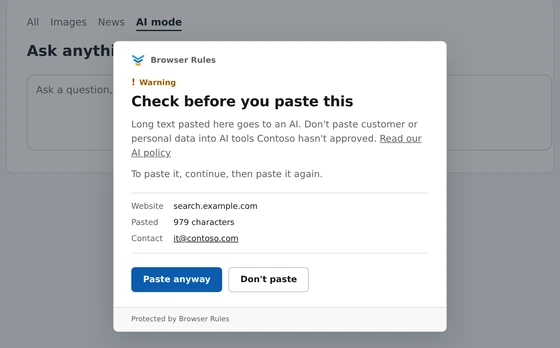
Browser Rules handles points 4 and 5 in Chrome and Edge, without blocking search:
- Two ready-made rules: Warn before long pastes into Google AI Mode and Warn before uploading files to Google Search. Both cover Google Search’s own addresses, for the UK and many other countries, and not Gmail or Google Docs.
- Long pastes only, by default. The paste rule acts on pastes of 500 characters or more, so searches are never interrupted.
- Shorter sensitive text, if you need it. Lower the length, or add a second paste policy with a content list, such as your customer account number format or “confidential”. It then acts on matching text of any length.
- Every file. The upload rule warns before any file is uploaded to Google Search, whether to AI Mode or Google Lens.
- Your message, at the moment it matters. The paste or file is held back until the user confirms, then pastes or chooses it again. Or choose Block instead.
- Private by design. The audit log records the website and how many characters were pasted, or the file’s name and size, never the content.
Set up in minutes
- Install the extension on your managed Chrome and Edge browsers with Intune, Google Admin or Group Policy, with your enrolment key.
- In the admin console, open Clipboard, choose Add policy, then Warn before long pastes into Google AI Mode. Then open Uploads and add Warn before uploading files to Google Search.
- Save and publish. Browsers pick up the changes within minutes.
Browser Rules is free for up to 50 users. See How to stop staff uploading work files to AI tools for uploads to other AI tools.
What Browser Rules doesn’t do
- Block AI Mode itself. Website policies apply to whole websites, and Google Search can’t be blocked.
- See typed questions. It sees pastes and files, not what people type. Short pastes pass too, unless you lower the length or add a content list.
- Control AI built into the browser. Gemini in Chrome and Copilot in Edge are part of the browser, so browser policies control them.
A short checklist
- Name Google’s AI Mode in your AI policy.
- Set Chrome’s AIModeSettings policy to remove its shortcuts.
- Warn before long pastes into Google Search, and add a content list for short sensitive text.
- Warn before files are uploaded to Google Search.
- Review your browsers’ own AI features, such as Gemini in Chrome and Copilot in Edge.
Sources
- Google: AIModeSettings policy
- Search Engine Roundtable: AI Mode with file uploads
- Cisco Community: Blocking Google Search AI Mode
- Netskope Community: Google Search AI Mode, block web access