
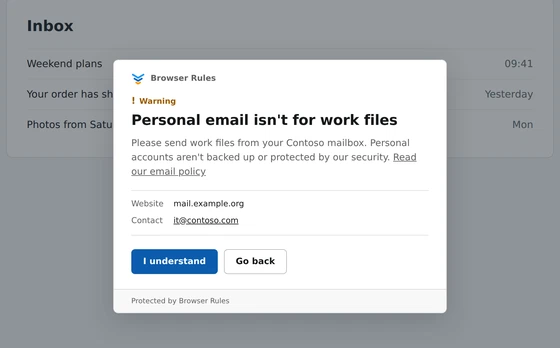
Most security training happens once a year, far from the moment it’s needed. A short message in the browser, shown just as a user is about to break a rule, puts the lesson where it applies.
Why yearly training isn’t enough
Researchers at UC San Diego tested training on more than 19,500 staff at UC San Diego Health, over eight months, with test phishing emails:
- The yearly course made no measurable difference. Staff who had just finished it fell for the test emails as often as staff who hadn’t.
- Training after a failed test helped little. It cut clicks by about 2%.
- Few people read it. Three-quarters spent a minute or less on the training material, and about a third closed it without reading.
The human side still matters. Verizon’s 2025 Data Breach Investigations Report found a human action in around 60% of breaches. The problem is when and how the lesson is given.
Teaching through normal use
Browser Rules shows your message at the moment one of your policies applies: when a user opens a website, downloads a file or copies text. A warning explains the rule and lets the user decide. A block stops them and says why.
- Personal webmail. “Please send work files from your Contoso mailbox. Personal accounts aren’t backed up or protected by our security”, with a link to your email policy.
- AI assistants. “Our approved AI assistant is Copilot. Please don’t paste customer data into other AI tools.”
- File-sharing websites. A reminder to use the service you approve, such as OneDrive.
- Office files with macros. A reminder to open them only when they’re expected.
- Copying a risky command. A reminder that commands like this can install or run software.
Each message names the website or file, and its buttons say what they do, such as Go back, Don’t download or Don’t copy.
Writing messages that teach
- Keep it short. One or two sentences. People give training material less than a minute, and a warning gets a few seconds.
- Say what to do instead. “Use OneDrive for work files” teaches more than “Not allowed”.
- Link to the policy. A link in the message takes users to the full rule when they want it.
- Warn where judgement applies, and block where the rule is firm. A warning trusts users to decide. Keep blocks for what must never happen.
- Ask for acknowledgement sparingly. “I understand” before carrying on makes a user stop and read. On every warning, it becomes a reflex.
- Aim it at the users who need it. A policy can apply to one group, such as new starters or one department, and leave everyone else alone.
Measuring what people actually do
Course completion shows who finished a course, not what changed. The audit log records each warning, and what the user did next: went back or carried on. The Overview counts them for the last seven days.
Use it to follow up with the users who carry on most often, or to rewrite a message that nobody heeds.
What it doesn’t do
- It doesn’t currently judge phishing pages. Its messages follow the policies you set for websites, downloads and the clipboard, and its default policies block dangerous files and malicious commands.
- It doesn’t replace training. Keep teaching users how to spot and report phishing. Messages in the browser reinforce the rules you teach, where they apply.
- Too many warnings teach users to click past them. Warn where it matters, and watch the audit log for warnings everyone ignores.
Getting started
Enrol browsers in the admin console, then choose Add policy. The Rule Library has ready-made warnings, including:
- Warn before file-sharing websites
- Warn before macro documents
- Warn when users copy a risky command
- Warn before ZIPs that can’t be checked
Set your wording and logo in Library, Messages, and your groups in Users and groups.
See Messages and branding, Website policies and Users and groups.