
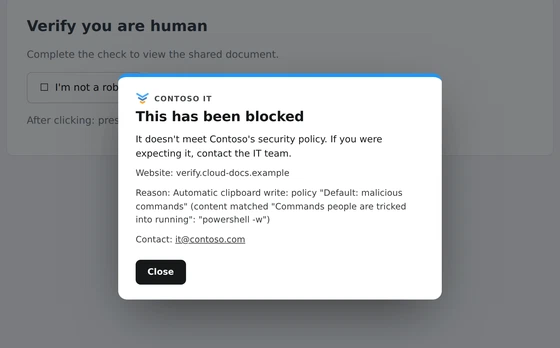
ClickFix is one of the most common ways attackers get malware onto a computer today. There’s no exploit and nothing for the browser to download. A web page asks the user to fix a problem by pasting a command, and the user runs it themselves.
Huntress, which monitors more than 5 million endpoints, found that 53.2% of all malware loader activity in 2025 came from ClickFix. Nearly 99% of the ClickFix signals it saw in 2026 were high severity (The Huntress Tragic Quadrant).
How a ClickFix attack works
- The user lands on a page from a search result, an ad, a phishing email or a hacked website.
- The page shows a familiar obstacle: a “Verify you are human” check, a fake CAPTCHA, or an error that needs fixing.
- Behind the scenes, the page puts a command on the clipboard.
- The page gives simple steps: press the Windows key and R, press Ctrl and V, then press Enter. On a Mac, it asks the user to open Terminal and paste.
- The command downloads and runs malware, often an infostealer that takes saved passwords and sign-in sessions.
The steps feel routine, and that’s the point. As Huntress puts it, ClickFix makes the victim do the attacker’s dirty work.
Why it gets past other defences
- The browser downloads no file, so download scanning and blocking see nothing. The command fetches its payload itself, outside the browser.
- No exploit is needed, so patching doesn’t help.
- The user runs the command, with their own permissions, using a tool that’s part of Windows or macOS.
- The page looks harmless to email and web filters: some text, a button and a little script.
Endpoint protection can still catch what the command does next, but by then something is already running on the computer.
The variants
The disguise changes, but the core stays the same:
- Fake CAPTCHAs and “verify you are human” pages, the original form.
- Fake error fixes, such as “Your browser needs an update” or “Fix this display problem”.
- FileFix, where the command is pasted into the File Explorer address bar instead of the Run box.
- Mac versions, where the user pastes into Terminal. The command usually downloads a script and runs it in a shell, often with the address hidden by encoding.
- Fake install instructions, where a page shows a genuine-looking install line but its Copy button puts a different command on the clipboard.
Every one of these has the same weak point: the page has to put the command on the clipboard.
How Browser Rules stops it
Browser Rules checks what websites put on the clipboard, inside the browser.
- Page writes are checked, whether the page uses a Copy button, a script that copies by itself, or swaps in different text when the user copies something.
- The text is checked against a list of the commands attackers use: PowerShell and its download commands, mshta, curl or wget piped into a shell, base64 decoding, Windows tools often used to run downloaded code, and more.
- A match never reaches the clipboard. Browser Rules puts safe text there instead: “Browser Rules replaced this text: your organisation does not allow this website to put this on your clipboard.” If the user pastes it into the Run box, nothing runs.
- The user sees your message, in your words and with your contact details, so they learn what happened.
- The audit log records it: the website, the policy and the text that matched. Your Privacy settings decide how much of that reaches the admin console.
This is the default policy, “Default: malicious commands”. It’s on from the moment the extension is installed, with no setup.
Kept up to date and tested against real attacks
Browser Rules keeps the list of malicious commands up to date. When attackers change their commands, a new pattern reaches every enrolled browser within minutes, with no extension update.
Every change to the list is tested against real ClickFix commands collected by ClickGrab, an open project that scans live ClickFix pages every night. The current list catches all 53 commands in our test set, and lets ordinary text such as npm install and git clone through.
Checked in the browser
The check happens on the computer, inside the browser. Clipboard text isn’t sent anywhere to be checked.
Commands users copy themselves
A page can also ask the user to select the command and press Ctrl and C. The default policy only checks what pages write, so ordinary copying isn’t affected. To cover users’ own copies too, add “Warn before copying install commands” from the Rule Library. When a user copies a command like these, they see a warning with a reminder to check where it came from. For staff who never need to run commands, set it to Block, and the command isn’t copied at all.
What it doesn’t cover
No single control stops every attack, and Browser Rules is one layer.
- Commands from outside the browser, such as a chat message, an email opened in a desktop app, or a phone call.
- Genuine install commands. Some legitimate software installs with a command that downloads a script and runs it. Copied with a website’s Copy button, it’s blocked too. For IT staff and developers, add an Allow policy for the vendor’s website.
Other steps worth taking
- Lock down the Run box. Huntress recommends locking down the Windows Run box across the company. Without it, there’s nowhere to paste the command.
- Use standard user accounts, so a command that does run can do less.
- Keep endpoint protection running, to catch anything that gets through.
- Explain the attack to staff. No genuine website asks you to press the Windows key and R and paste something. Browser Rules’ message turns each blocked attempt into that lesson.
Getting started
Install Browser Rules from the Chrome Web Store, or deploy it with your device management tool. The default policies protect users straight away. Enrol browsers in the admin console to show your own message, see blocked attempts in the audit log and add policies for groups.
See Try it, Default policies and Clipboard policies.