
Most phishing wants a password. Consent phishing doesn’t. The user signs in on Microsoft’s real page, completes MFA, and then clicks Accept to grant an app access to their account or their organisation. No password is stolen. The grant keeps working after a password change, because it isn’t a password.
Microsoft treats this as a real and growing threat, and gives it a name: consent phishing.
How a consent phishing attack works
- The attacker registers an app, or uses one, that asks for permissions such as reading mail, reading files, or managing the directory.
- They send the user a link to Microsoft’s real consent page.
- The user signs in as normal, MFA included, and sees Microsoft’s genuine “Permissions requested” screen.
- The user clicks Accept.
- Microsoft gives the app a token. The app now reads the user’s mail and files, or more, without the user present.
An admin can be tricked the same way, and it is worse. Admin consent grants the app access to the whole organisation. A malicious app can ask an admin for near-total control in one screen: read and write all mail, full control of every SharePoint site, read and write the directory and domains, and manage other apps’ permissions. An app granted that owns the tenant.
Why it gets past other defences
- The page is Microsoft’s own. Checking the address, which training teaches, shows a genuine Microsoft website.
- MFA doesn’t help. The user completes it themselves, then grants access on top.
- No password is stolen, so password checks and leaked-password alerts see nothing.
- A password change doesn’t end it. The grant is a separate thing. You have to remove the app’s access.
A legitimate app can go rogue later
Granting an app access is standing trust, not a one-off decision. It keeps working until you remove it, which is why consent phishing is worth this much care.
An app that is safe today can turn tomorrow. The vendor is breached, the app is sold to a new owner, or a quiet update changes what it does. Nobody asks you again.
It is the same risk as a browser extension. You install one you trust, then months later a silent update, or a new owner, turns it against you, and the permission you gave once is still there. Attackers also abuse real, legitimate apps this way, consenting a genuine app into your tenant to carry out the theft.
So treat consent like an extension. Grant it only to apps you would vouch for, review what you have granted from time to time, and remove anything you no longer use. For continuous cover rather than a check you have to remember, an Identity Threat Detection and Response (ITDR) product, such as Huntress Managed ITDR, watches a tenant for rogue apps and risky consent grants, which suits an MSP watching many clients.
The strongest control: restrict consent in Entra (free)
This costs nothing. It is in every Microsoft 365 tenant, with no add-on licence.
Stop users consenting to risky apps
- In the Microsoft Entra admin center, open Entra ID, Enterprise apps, then under Security, Consent and permissions, User consent settings.
- Under User consent for applications, choose one:
- Let Microsoft manage your consent settings (Recommended): Microsoft keeps you on its current safe defaults. The simplest choice for most organisations.
- Do not allow user consent: every app needs an administrator. The tightest.
- Allow user consent for apps from verified publishers, for selected permissions: users can still consent, but only to low-impact permissions, and only for verified apps.
- Select Save. See Configure how users consent to applications.
With user consent restricted, a risky request becomes an admin’s decision instead of a user’s. Microsoft also applies risk-based step-up consent, which sends a risky request to an admin even where user consent is allowed.
Let users ask, so work isn’t blocked
Turn on the admin consent workflow, so a user who can’t consent can request it, and an admin approves. In the same Consent and permissions area, open Admin consent settings, and turn on users requesting admin consent.
Review what has already been granted
Check Enterprise applications for apps and the permissions they hold, and remove any you don’t recognise. See Microsoft’s guide to detecting and remediating illicit consent grants.
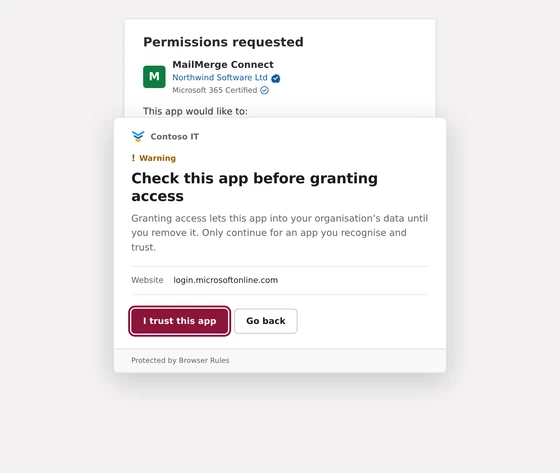
Microsoft shows two trust marks on the consent screen. A verified publisher (the blue tick) means Microsoft has confirmed who the publisher is. Microsoft 365 Certified means the app also passed Microsoft’s security review. Both are reassuring, but neither means “safe to grant anything”. An unverified publisher asking for broad access to mail, files or the directory is the pattern to distrust most.
The warning Browser Rules adds
Restricting user consent routes risky requests to an admin. That is the right place to be careful, and the moment an attacker aims at. Browser Rules puts a warning there.
Add Warn before granting an app access to your organisation from the Rule Library. An admin who opens Microsoft’s admin consent page sees your message first: “Check this app before granting access.” They read the app and permissions on Microsoft’s own screen, then continue or go back. Allow admin consent for a group lets your IT group grant apps without the warning.
- It’s a pause, not a gate. The admin still grants legitimate apps. The warning makes them stop and look.
- On by choice. Both are Rule Library rules, not default policies, so nothing changes until you add them.
- Private. The audit log records that the admin consent page was opened, never a token or a code.
This is a reminder at the browser, a backstop to the Entra settings, not a replacement for them. The Entra settings are the real fix, and they are free, so set those first.
What Browser Rules doesn’t do
- Name the app or list its permissions. Microsoft’s own consent screen shows those; the warning sends you to read them.
- Cover user consent screens. Restricting user consent in Entra is the control for those. Browser Rules covers the admin consent page.
- Replace reviewing your granted apps, or the Entra settings above.
A short checklist
- Restrict user consent in Entra (verified publishers and selected permissions, or not at all). It’s free.
- Turn on the admin consent workflow, so users can request and an admin approves.
- Review the apps in Enterprise applications, and remove any you don’t recognise.
- Add the Browser Rules admin consent warning, with an exception for your IT group.
- Tell admins: an unverified publisher, or an app asking for broad access to mail, files or the directory, deserves a hard look.
Getting started
Install Browser Rules from the Chrome Web Store, or deploy it with your device management tool. Add the admin consent rules from the Rule Library in the admin console. Browser Rules is free for up to 50 users.
See Website policies.
Sources
- Microsoft Learn: Protect against consent phishing
- Microsoft Learn: Configure how users consent to applications
- Microsoft Learn: Configure risk-based step-up consent
- Microsoft Defender for Office 365: Detect and remediate illicit consent grants
- Huntress: Managed ITDR, identity threat detection and response, including rogue apps