
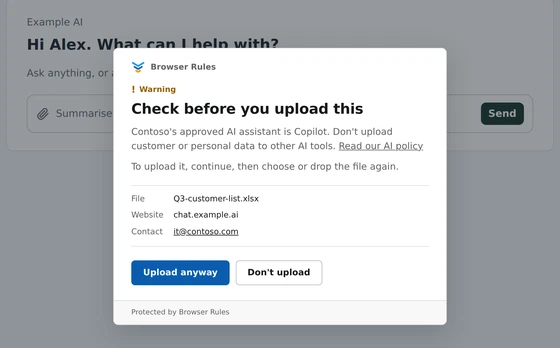
A customer list dropped into ChatGPT to “tidy it up”. A contract uploaded to Claude for a summary. A payroll spreadsheet given to an AI tool nobody approved. Each takes a few seconds, and none of it feels risky to the person doing it.
AI tools are useful, and most organisations want people to use them. The aim is to control where work files go, without stopping the work.
Why uploads matter more than typing
- A file holds far more than a prompt. One spreadsheet can hold thousands of customer records. Someone typing a question rarely shares that much.
- It’s effortless. AI tools accept documents, spreadsheets, PDFs and images, by drag and drop.
- Personal accounts keep what they’re given. Free and personal plans can keep uploaded files, and some use them to improve their models unless the user opts out.
- You can’t get it back. Once a file is in a personal account, you can’t see it, delete it or close the account.
- It’s not just ChatGPT. Claude, Gemini, Copilot, Perplexity, DeepSeek and dozens of smaller tools all take uploads, and new ones appear every month.
Five ways to control uploads
1. Block AI websites altogether
Block the websites with a browser policy (URLBlocklist, set by Intune or Group Policy), protective DNS or a web filter’s AI category.
- Good for: tools you never want used, on every device you manage.
- Limits: it stops all use, including the useful kind. People switch to their phones, and you lose sight of what they use. Users usually see an error rather than an explanation.
2. Approve a tool, on a business plan
Give everyone an approved AI tool, such as Microsoft 365 Copilot Chat or ChatGPT Enterprise. Business plans usually don’t train on your data, and give admins control over sharing and retention.
- Good for: making the safe choice the easy one.
- Limits: its settings only cover your organisation’s accounts. Nothing stops someone opening a personal account in the next tab, often on the same website.
3. Data loss prevention (DLP)
DLP looks inside files for sensitive information, such as card numbers or files labelled confidential, and blocks or warns before they’re uploaded.
Microsoft Purview Endpoint DLP can warn about or block uploads of sensitive files to the websites you choose, on Windows and Mac devices onboarded to Purview (Microsoft). For AI websites, it can also block uploads of files with a chosen sensitivity label. It works in Edge, and in Chrome and Firefox with the Microsoft Purview extension, and needs pay-as-you-go billing turned on (Microsoft). Check the licences it needs in Microsoft’s Purview service description.
Chrome Enterprise Premium adds DLP rules to Chrome that warn about, block or record uploads, based on what a file contains. Rules can use its Generative AI website category (Google). It’s a paid add-on.
- Good for: regulated data, where what’s in the file matters more than where it’s going.
- Limits: licence cost, and real work to set up. You define what counts as sensitive, label files, and tune rules until they stop flagging ordinary work.
4. A secure web gateway or CASB
These inspect web traffic, usually through an agent or a proxy. Many can control uploads for each app, and some can tell a work account from a personal one.
- Good for: large organisations that want one control point for every app and network.
- Limits: cost and complexity. Inspecting encrypted traffic takes certificates, agents and exceptions for the websites it breaks.
5. An AI policy and training
Write a one-page AI policy: the approved tools, what must never go into AI tools, and who to ask. Then remind people at the moment it matters.
- Good for: every organisation. It’s the base the other controls stand on.
- Limits: it relies on people remembering, at the moment they’re in a hurry.
At a glance
| Approach | Stops uploads | Looks inside files | Explains to the user | Cost and effort |
|---|---|---|---|---|
| Block AI websites | Yes, with all use | No | Rarely | Low |
| Approved business plan | Only in your accounts | No | No | Medium |
| DLP | Yes | Yes | Yes | High |
| Web gateway or CASB | Yes | Often | Sometimes | High |
| Policy and training | No | No | Yes | Low |
Most organisations combine two or three. The gap between “block everything” and full DLP is where most smaller organisations sit.
Where Browser Rules fits
Browser Rules fills that gap in Chrome and Edge. Its upload policies decide each file as the user chooses, drops or pastes it, before the website can read it.
- By website and file type. Use the built-in AI assistants list, which Browser Rules keeps up to date, or enter your own websites.
- Warn, block or record. Warn shows your message. With Require acknowledgement, the file is kept back until the user confirms and chooses it again. Block stops it. Audit lets it through and records it.
- Allow your approved tool. Put an Allow policy for it above the rule for other AI tools. The first policy that matches decides.
- For everyone, or chosen users and groups.
- Your own message, with a link to your AI policy, shown at the moment someone tries to upload.
- See what’s happening first. Record every upload in Privacy records each file’s name, size and website, never its content. A week of records shows which AI tools your people actually use.
- Ready-made rules, such as Warn before uploading to AI assistants and Block uploading keys and password databases.
Set up in minutes
There’s no proxy, no certificates, no device onboarding and no content rules to tune.
- Install the extension on your managed Chrome and Edge browsers with Intune, Google Admin or Group Policy, with your enrolment key.
- In the admin console, open Uploads, choose Add policy, then Warn before uploading to AI assistants.
- Add your message, save and publish. Browsers pick up the change within minutes.
Browser Rules is free for up to 100 users. See Upload policies to set it up, and How to allow approved AI tools and block the rest for the wider picture.
What Browser Rules doesn’t do
- Read the file’s content. It decides by website and file type, so it can’t tell a harmless spreadsheet from one full of customer data. If that matters, add DLP.
- See text typed or pasted into a chat. Upload policies cover files only.
- Cover desktop apps. ChatGPT, Claude and Copilot all have desktop apps, which don’t go through the browser.
- Stop someone determined. Upload policies stop people uploading files to the wrong place by mistake. A website built to get round browser extensions can still find a way, so block the websites you never want used.
A practical setup
- Approve an AI tool on a business plan, and tell everyone what it’s for.
- Write a one-page AI policy.
- Record uploads for a week or two, to see which AI tools are in use.
- Warn before uploads to other AI tools, with a message pointing to the approved one.
- Block uploads of keys and password databases everywhere.
- Block outright the AI tools you never want used.
- Add DLP if you handle regulated data and need to look inside files.