
HTML smuggling gets malware past the email gateway and the web proxy by never sending it as a file. The file is hidden inside a web page, and the browser builds it on the user’s computer.
How HTML smuggling works
- It starts with an HTML attachment or a link. The email looks like a shared document, a voicemail or a remittance advice.
- The file is hidden in the page. The malware is stored as encoded text inside the page’s script. To a scanner, it’s just text in a web page.
- The browser builds it. When the page opens, its script turns the text back into a file and saves it, often without a click.
Nothing that looks like a file crosses the network, so gateways and proxies have nothing to scan. In Microsoft’s words, the malicious files “are created only after the HTML file is loaded on the endpoint through the browser”.
Who uses it
- State-backed attackers. Microsoft saw NOBELIUM use HTML smuggling in a spear-phishing campaign in May 2021. MITRE ATT&CK records APT29 embedding ISO files in HTML attachments.
- Banking and remote access trojans. By November 2021, Microsoft reported HTML smuggling delivering the Mekotio banking trojan, the AsyncRAT and NjRAT remote access trojans, and Trickbot.
- QakBot, delivered in ZIP files built with HTML smuggling, also according to MITRE ATT&CK.
The smuggled file is usually a ZIP, sometimes password-protected, or a disk image such as an .iso. Inside is a script, a shortcut or a program.
How Browser Rules stops it
The browser is the one place a smuggled file can be stopped, because that’s where it’s built. Browser Rules sees every download the browser starts, including files a page makes itself.
- Dangerous files are blocked by name. The default policy, “Block dangerous file types”, blocks programs, scripts, shortcuts and disk images. It doesn’t matter whether a server sends them or a page builds them.
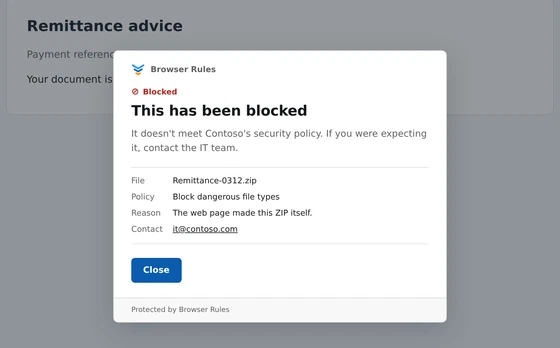
- A ZIP the page made is blocked. Browser Rules opens ZIPs from websites to check every file inside. A ZIP the page built exists only in that page, so it can’t be fetched again and opened. It counts as a ZIP that can’t be checked, and the default policy blocks it. The message says why: “The web page made this ZIP itself.”
- HTML attachments opened from the computer. Browser Rules can’t stop the file opening or show a message on it, because browsers keep extensions out of files on the computer. It still blocks what the page builds, because every download goes through the browser’s download manager. The block shows in the Browser Rules toolbar popup.
- Ordinary files are saved. A PDF a page builds, a converted spreadsheet or an image from an online editor is saved as usual.
- Every block is recorded. The audit log shows the file name, the website and the policy.
Exceptions for websites you trust
Some websites build ZIPs in the page for good reasons, such as GitHub’s download button or tools that pack several files into one ZIP. To allow them, add an Allow policy for that website above the default, with zip on its list. “Allow all ZIPs from a website” in the Rule Library does this.
A file a page makes is matched to the website that made it. The browser records that website, and the page can’t change it, so another website can’t borrow the exception.
What it doesn’t do
- It isn’t antivirus. Files are judged by type, not scanned for malware. A program a page builds and names report.pdf is saved, because it opens as a PDF, not as a program. Anything that would run it, such as a shortcut or a script, is blocked on its own.
- It doesn’t block the HTML file. Browser Rules stops what the page builds, not the attachment itself. Your email filter is the place to deal with HTML attachments.
- Only browsers with Browser Rules are covered. An HTML attachment opened in another browser, or previewed in a desktop email app, doesn’t pass through it.
Other steps worth taking
- Quarantine HTML attachments, if your users don’t need them. Most email filters can do this by file type.
- Make Chrome or Edge the default browser, so HTML files open where Browser Rules can see them.
- Show file extensions in Windows, so a shortcut or script doesn’t pass for a document.
- Keep endpoint protection running, to catch anything that gets through.
Getting started
Install Browser Rules from the Chrome Web Store, or deploy it with your device management tool. The default policies protect users straight away. Enrol browsers in the admin console to add exceptions for websites you trust, show your own message and see blocked downloads in the audit log.
See How to block dangerous downloads in Chrome and Edge, Default policies and Download policies.